
Installations and Upgrades
GetSimple CMS (Community Edition)New Install

Choose this section if you are installing GetSimple on a server for the first time. Select the installation method that best matches your hosting environment and the tools available to you.

Upgrading

Choose this section if you already have GetSimple installed and want to upgrade to a newer version. Before upgrading, always make a backup of your website and data.
Installing GetSimple CE
Requirements:
Method 1: Single File Installer
The simplest option for most users. Upload a single installer file to your server, run it from your browser, and let it download and install GetSimple for you.
Method 2: FTP
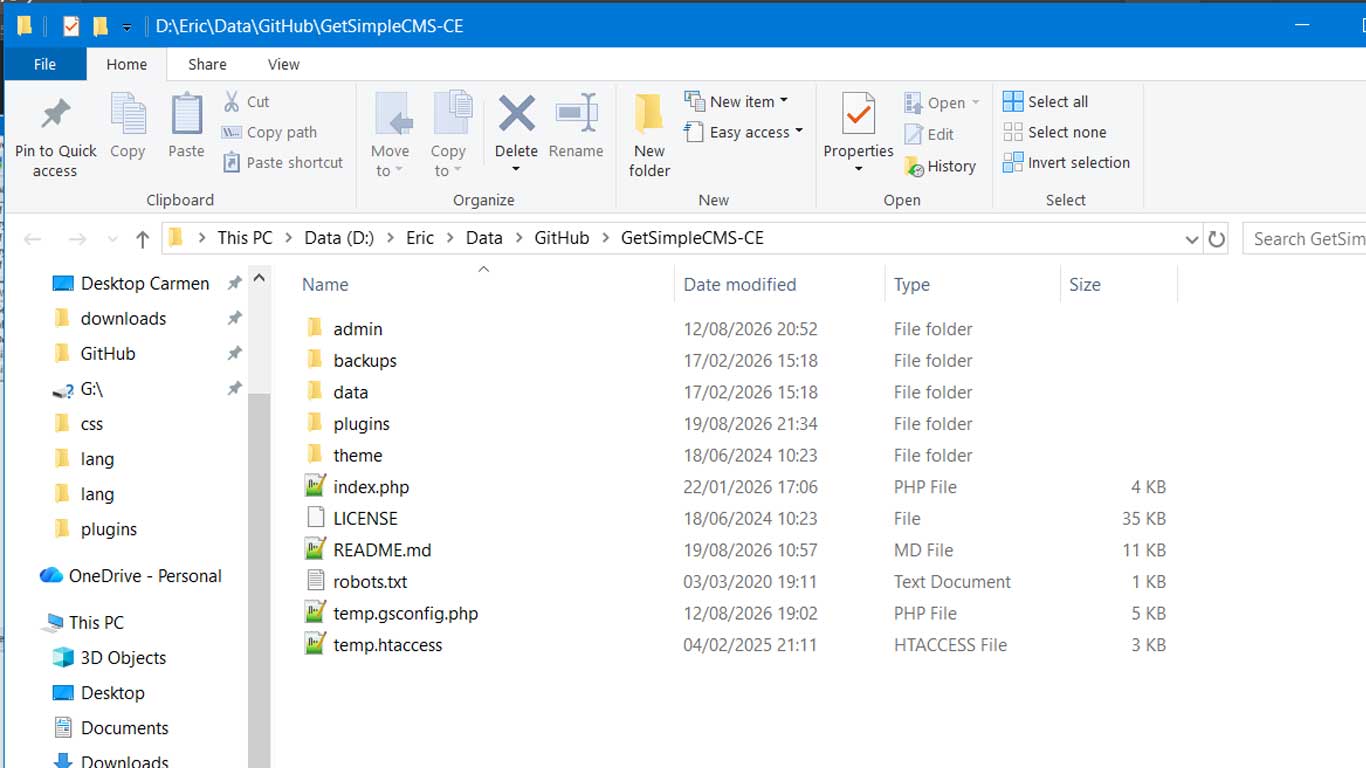
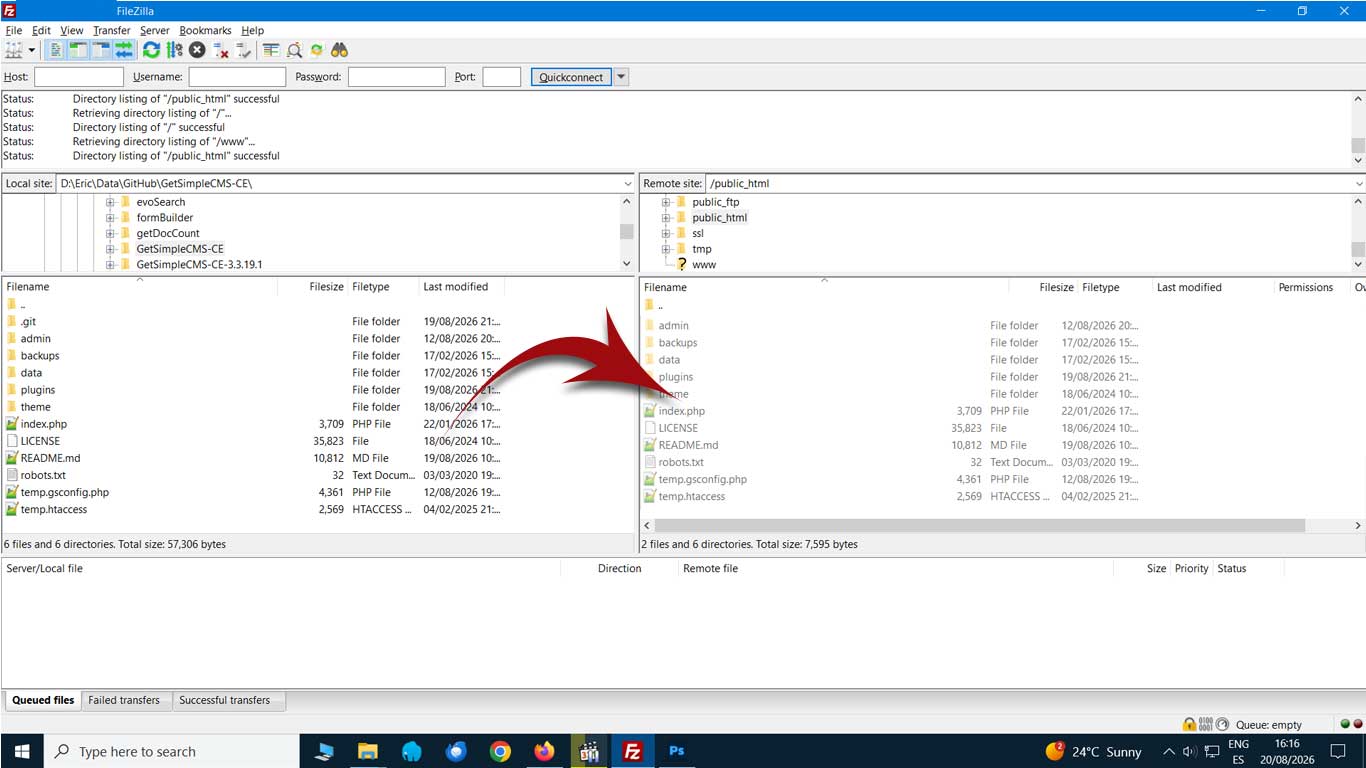
The traditional installation method. Download GetSimple, upload the files to your web server using an FTP client, and complete the installation through your browser.
- Download the latest release ZIP (or current Beta from the Dev Branch).
- Extract and upload the files to your server.
- Visit
yourdomain.com/admin(oryourdomain.com/subfolder/admin) and complete the setup wizard (site name, language, etc.) - 🎉 Congratulations, installation complete!
*It is recommended that you check for plugin updates to maintain PHP compatibility, security, bug fixes, and new features.
Upgrading GetSimple CE
The most happiest time of the day!. Suspendisse condimentum porttitor cursus. Duis nec nulla turpis. Nulla lacinia laoreet odio, non lacinia nisl malesuada vel. Aenean malesuada fermentum bibendum.
Method 1: CE Plugin
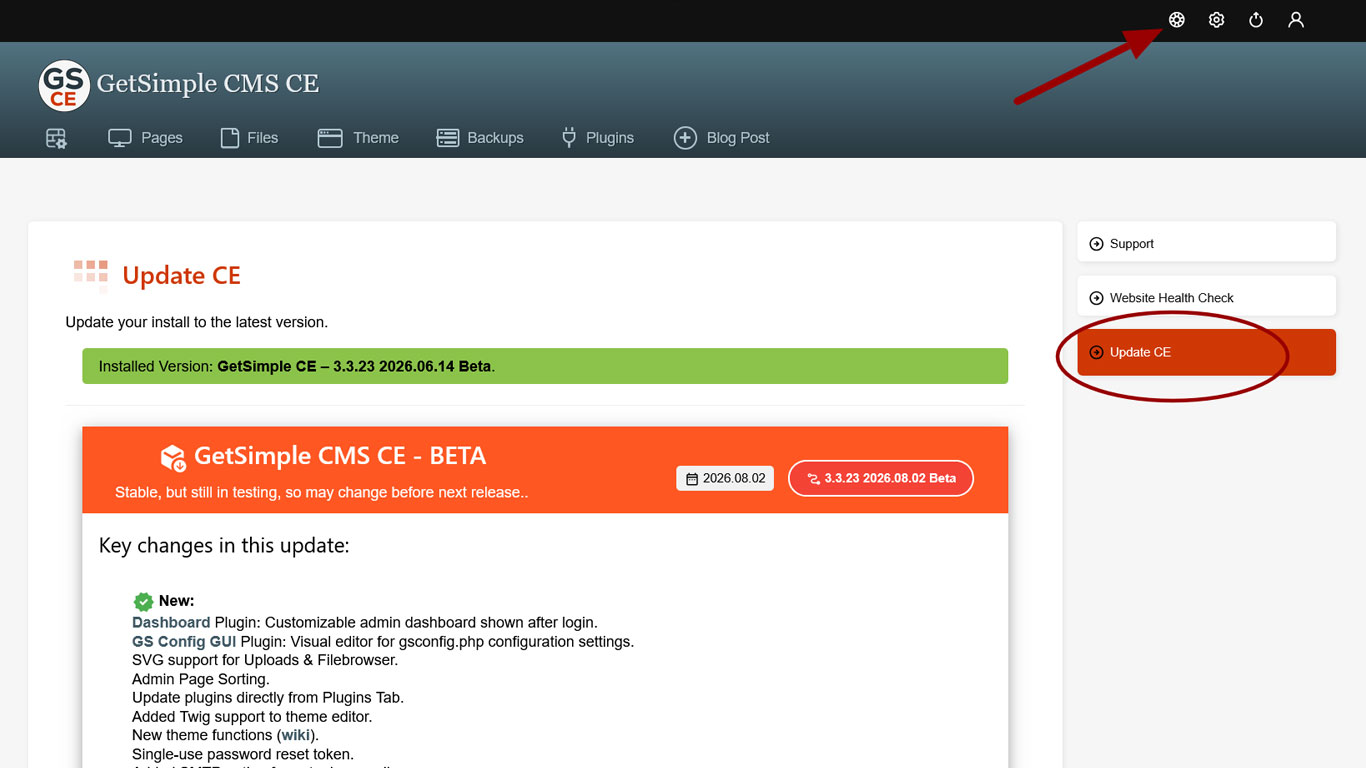
The easiest method for most users. The Update CE plugin can check for a newer version of GetSimple CE and guide you through the upgrade process directly from the administration panel.
1. In the [ 🛟 Support ] tab within the admin, visit the Update CE plugin from the side-menu and follow instructions.
- If you do not have this plugin, it is available from the plugins repo.
2. After updating, you may need to Activate the following [ 🔌 Plugins ]:
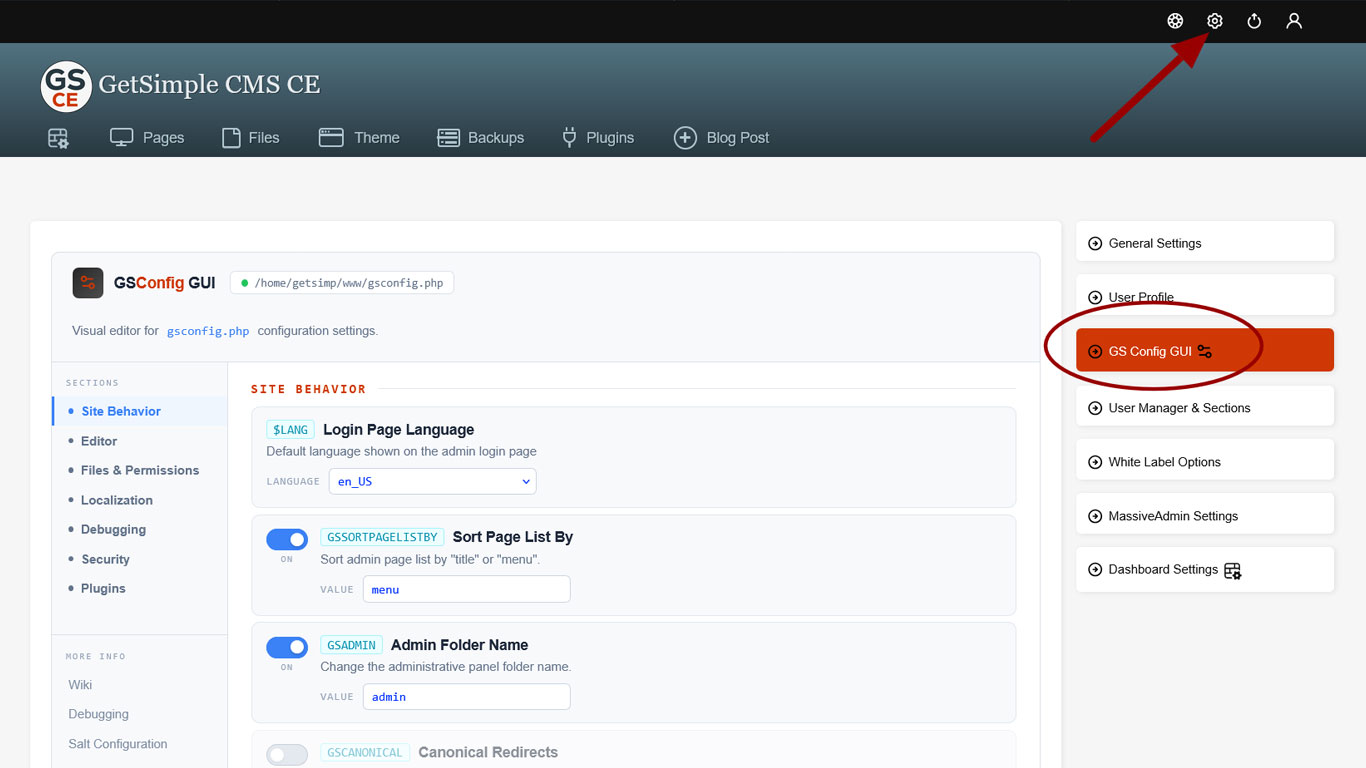
3. After activating, visit the (GS Config GUI ) settings page, found in the [ ⚙️ Settings ] tab, sidebar menu.
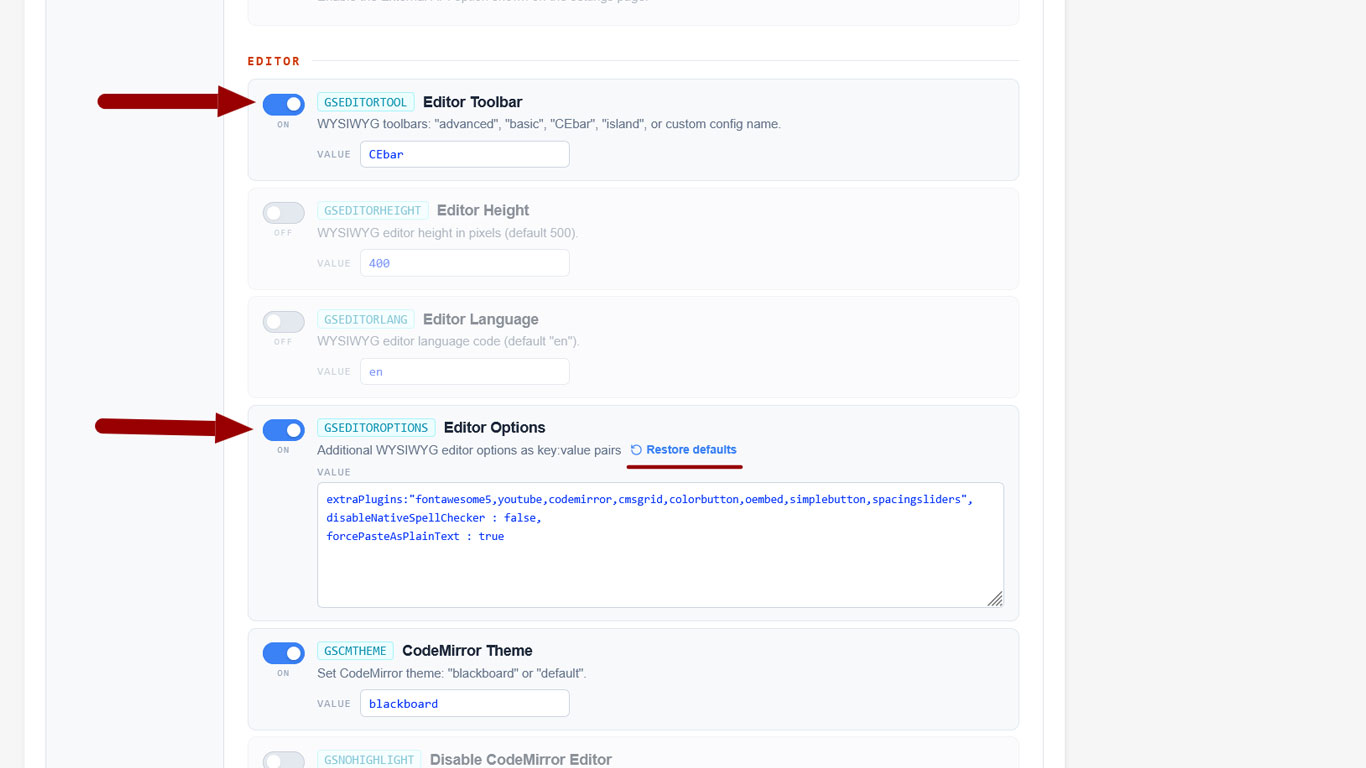
In the Editor section:
- Activate GSEDITORTOOL Editor Toolbar, if not already activated.
- Activate GSEDITOROPTIONS Editor Options, if not already activated.
If the [textarea] is blank, click the "Restor defaults" option. - Scroll to bottom of page and click the Save Changes button.
🎉 Congratulations, update complete!
*It is reccomended that you check for plugin updates to maintain PHP compatibility, security, bug fixes, and new features.
Method 2: Single File Installer
A convenient alternative when you don't want to use an FTP client. Upload the single installer file to your server and let it download and install the new GetSimple version for you.
Method 3: FTP
The traditional upgrade method. Download the new GetSimple version and upload the updated files to your server using FTP, replacing the existing files while keeping your data folder intact.
1. Download the full Update package and extract, overwriting existing files.
2. Visit your domain.com/admin (or yourdomain.com/subfolder/admin) to complete the update.
* The site will be put into maintenance mode until the update is completed.
2. After updating, you may need to Activate the following [ 🔌 Plugins ]:
3. After activating, visit the (GS Config GUI ) settings page, found in the [ ⚙️ Settings ] tab, sidebar menu.
In the Editor section:
- Activate GSEDITORTOOL Editor Toolbar, if not already activated.
- Activate GSEDITOROPTIONS Editor Options, if not already activated.
If the [textarea] is blank, click the "Restor defaults" option. - Scroll to bottom of page and click the Save Changes button.
🎉 Congratulations, update complete!
*It is reccomended that you check for plugin updates to maintain PHP compatibility, security, bug fixes, and new features.